 AoY: Adventure Guide
The Adventure Guide is not a single fixed route. Think of it as your personal in-game planner: it changes around your character's level, recommended content, and available progression options. When you are unsure what to hunt, what quest chain to start, what dungeon fits your bracket, or what gear category to inspect next, this is the first window to check.
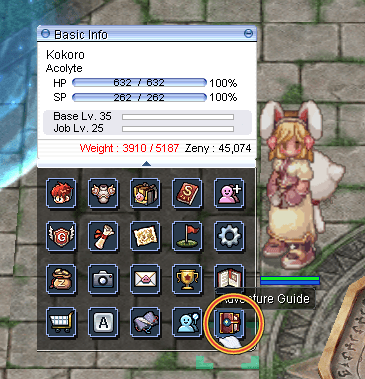
Expand the menu icons under your Basic Info window, then click the  Adventure Guide button near the lower-right of the icon cluster. Hovering the button shows the Adventure Guide tooltip before you open it.
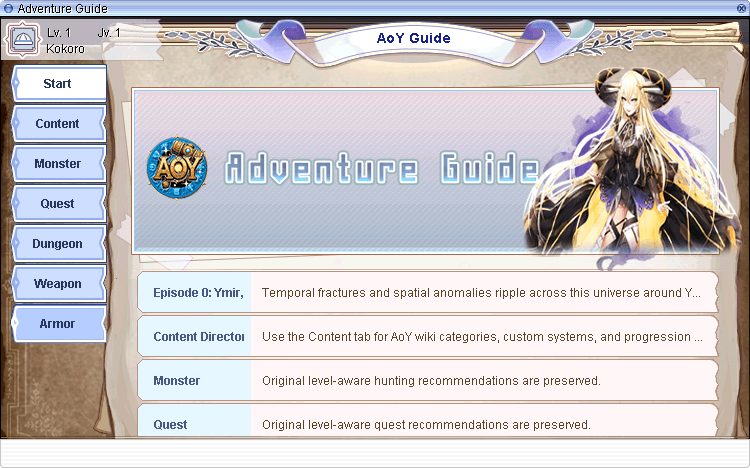
Each tab answers a player question: where should I go, what should I fight, what can I unlock, and what gear should I look at next? Entries can include level ranges, menu categories, rewards, map destinations, Tipbox links, and equipment obtain guides.
 Guide Tabs
Start
Shows your current level/job context and summarizes what each guide area is for.
Content
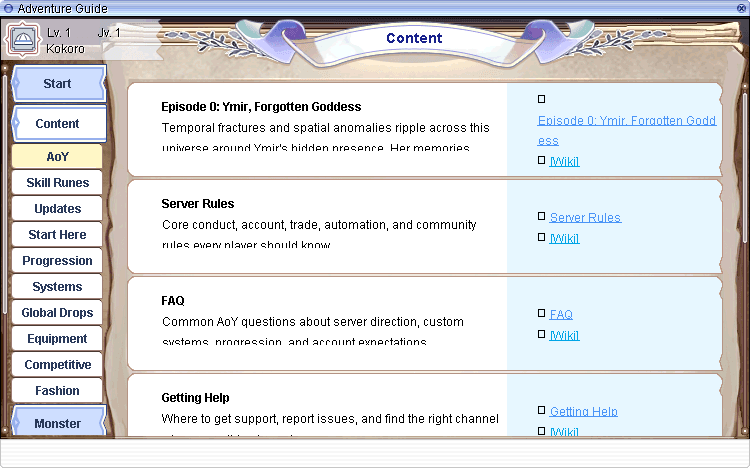
Connects you to AoY wiki categories such as Start Here, Progression, Systems, Global Drops, Equipment, Competitive, and Fashion.
 Monster
Displays level-aware hunting recommendations, monster details, drop previews, and Navigation actions.
 Quest
Quest
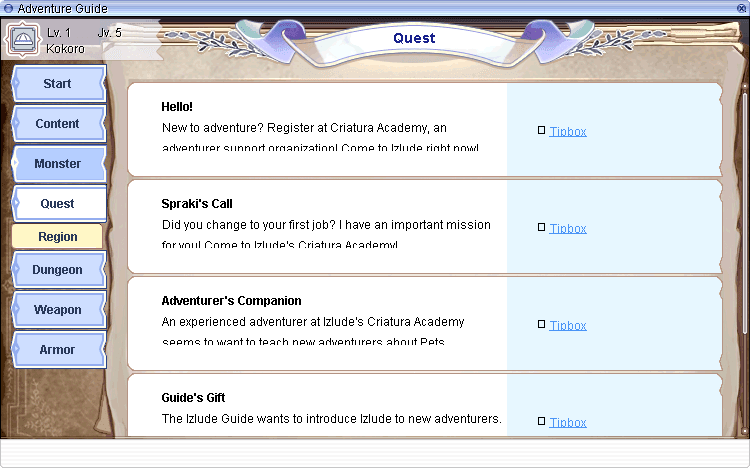
Organizes quests by Level, Region, and Subjugation, with Tipbox links for the selected entry.
 Dungeon
Recommends dungeon content by level and ties entries into Find routes and Move teleport destinations.
 Weapon and Armor
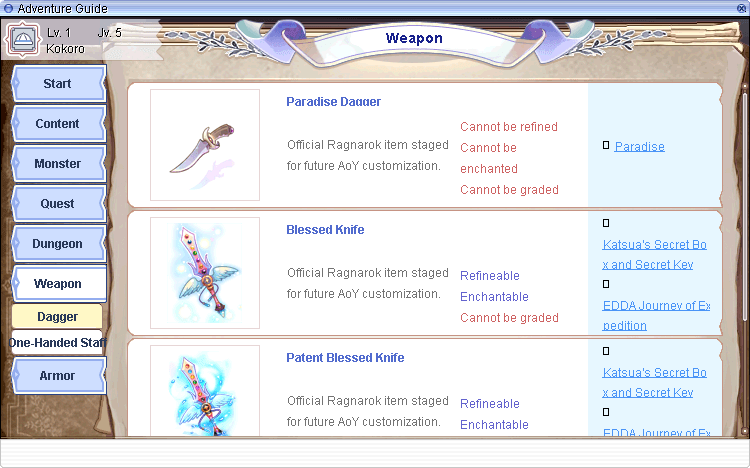
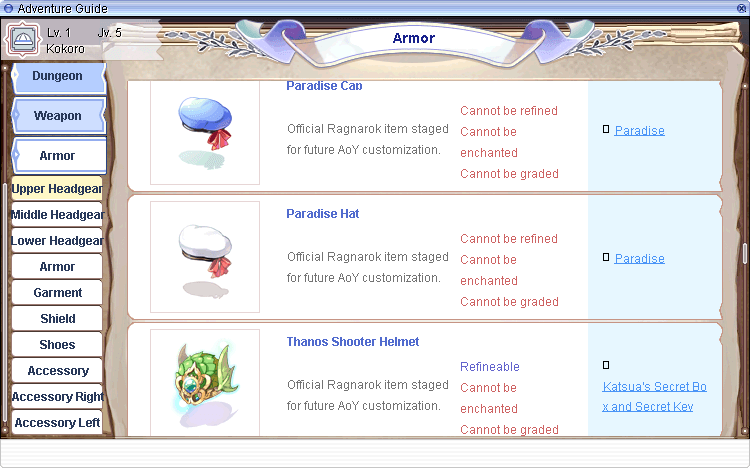
Filters equipment by weapon type or armor slot while showing refine, enchant, grade, and obtain-guide information.
The Monster tab is one of the strongest new-player tools because it puts hunting direction, enemy information, and travel in one place. The guide can show monster level, element, race, size, drops, and the maps where that monster is available. From there, the Navigation window can mark the destination with Find or open teleportation with Move.
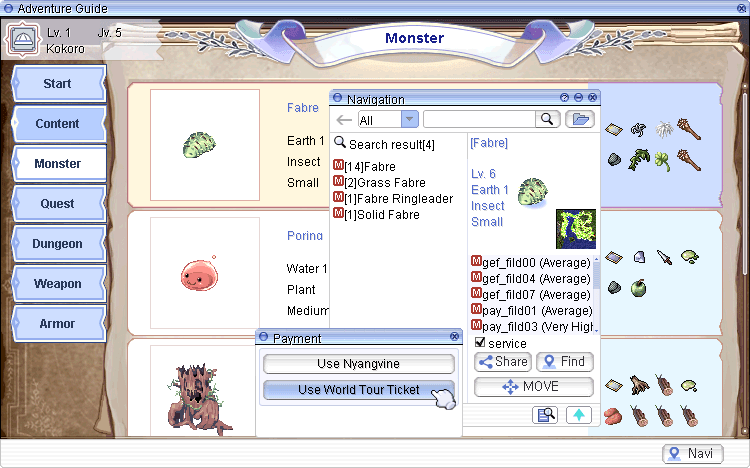
Pick a monster near your current level bracket, check its details, then use Find when you want route guidance or Move when you are ready to warp there. Move is the teleport option: it opens the travel prompt, where Use World Tour Ticket lets the ticket handle the warp instead of manually walking every step.
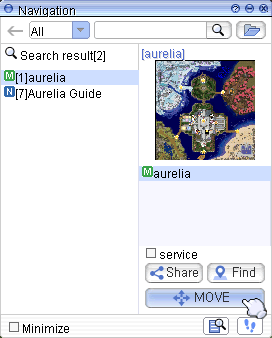
- Search result: lists matching monsters, maps, and NPCs with small type icons.
- Monster detail: shows the enemy preview, level, element, race, and size.
- Map list: shows where the target appears and lets you choose the destination.
- Find or Move: Find marks the route; Move opens the warp/teleport prompt.
Equipment Guidance
Weapon and Armor tabs help you compare gear in the same place you are planning progression. Weapon categories include daggers, swords, axes, bows, staves, guns, and more. Armor categories include headgear slots, armor, garment, shield, shoes, and accessories.
Orbit of Midgard
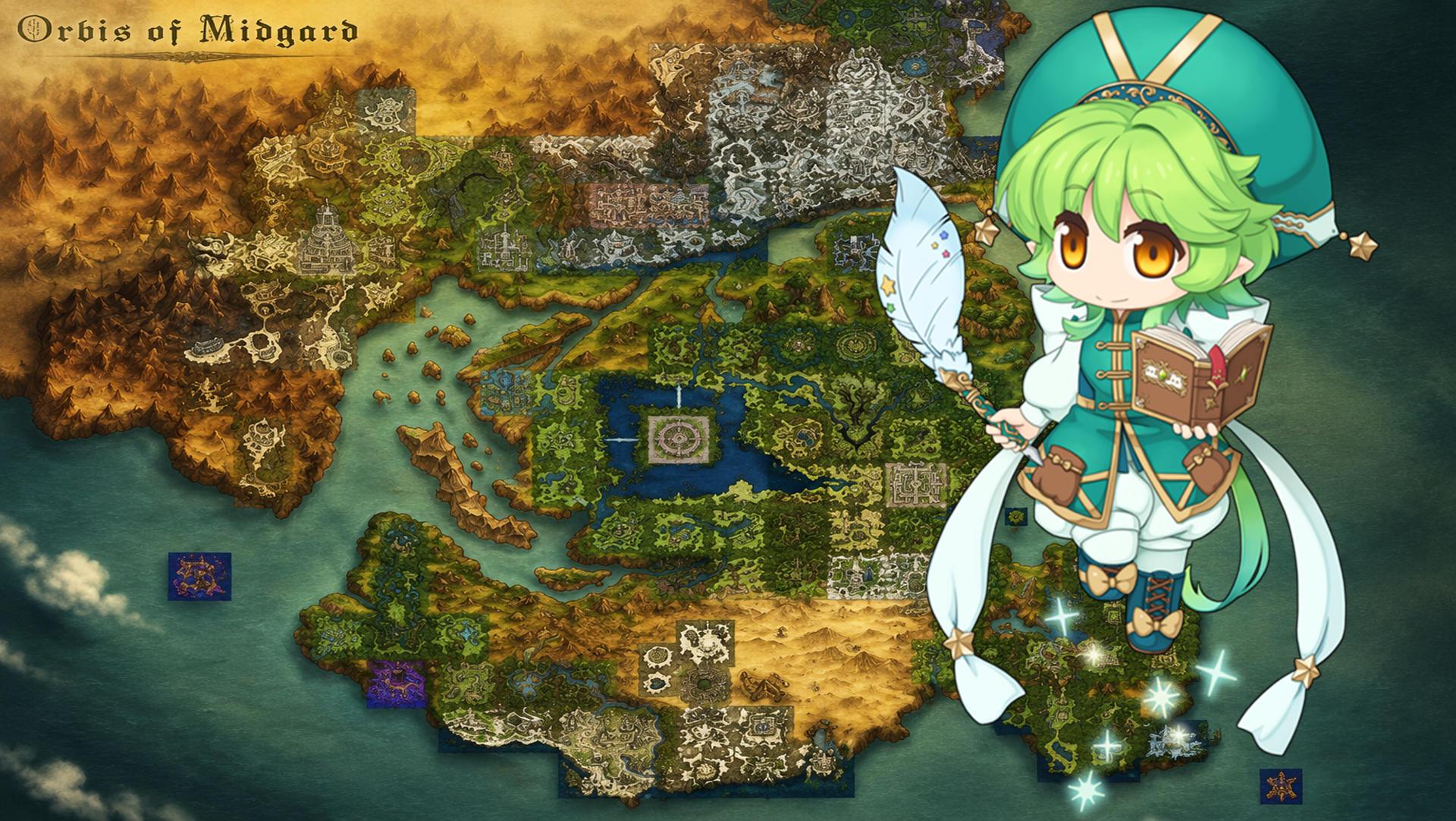
Open the world map with CTRL + `. On many keyboards this is the same physical key as tilde. Orbit of Midgard gives you a wide view of the world, dungeon labels, route lines, your current location, and the Monster tab overlay for checking map-level information at a glance.
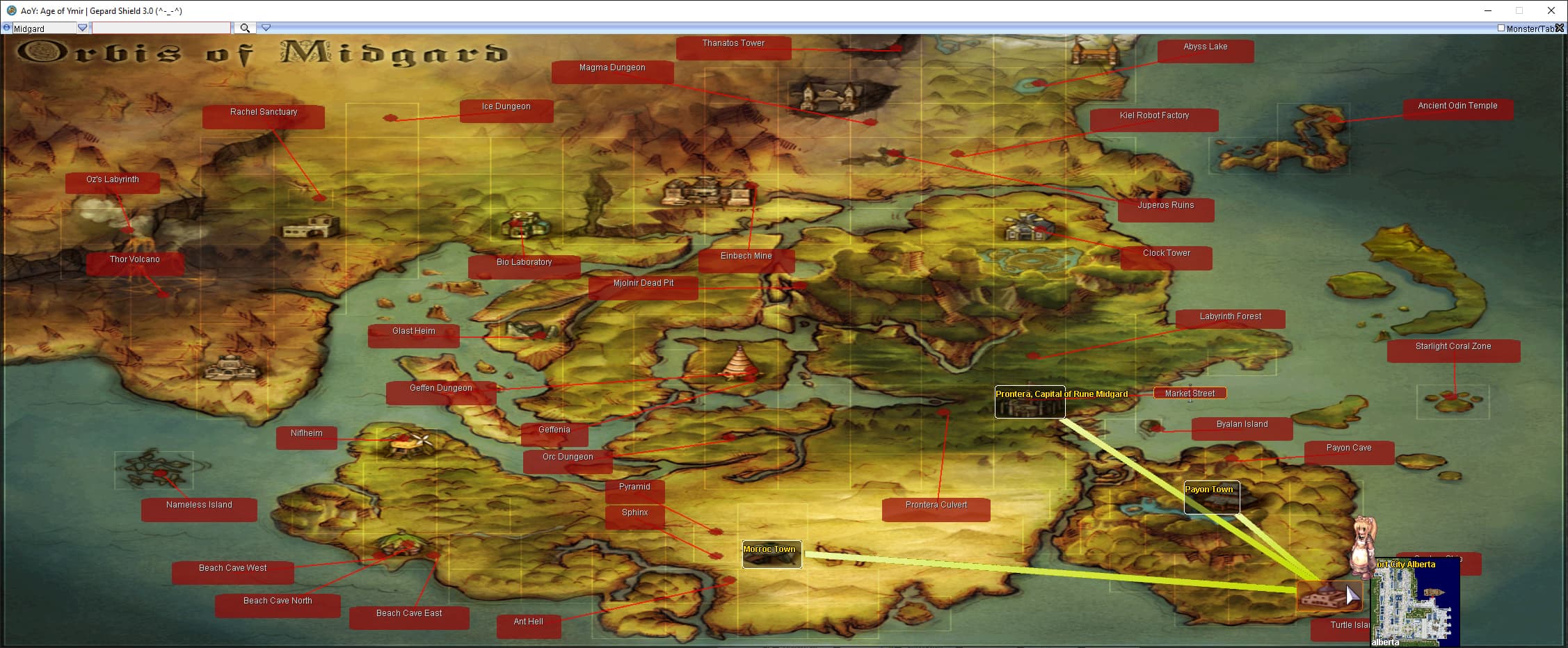
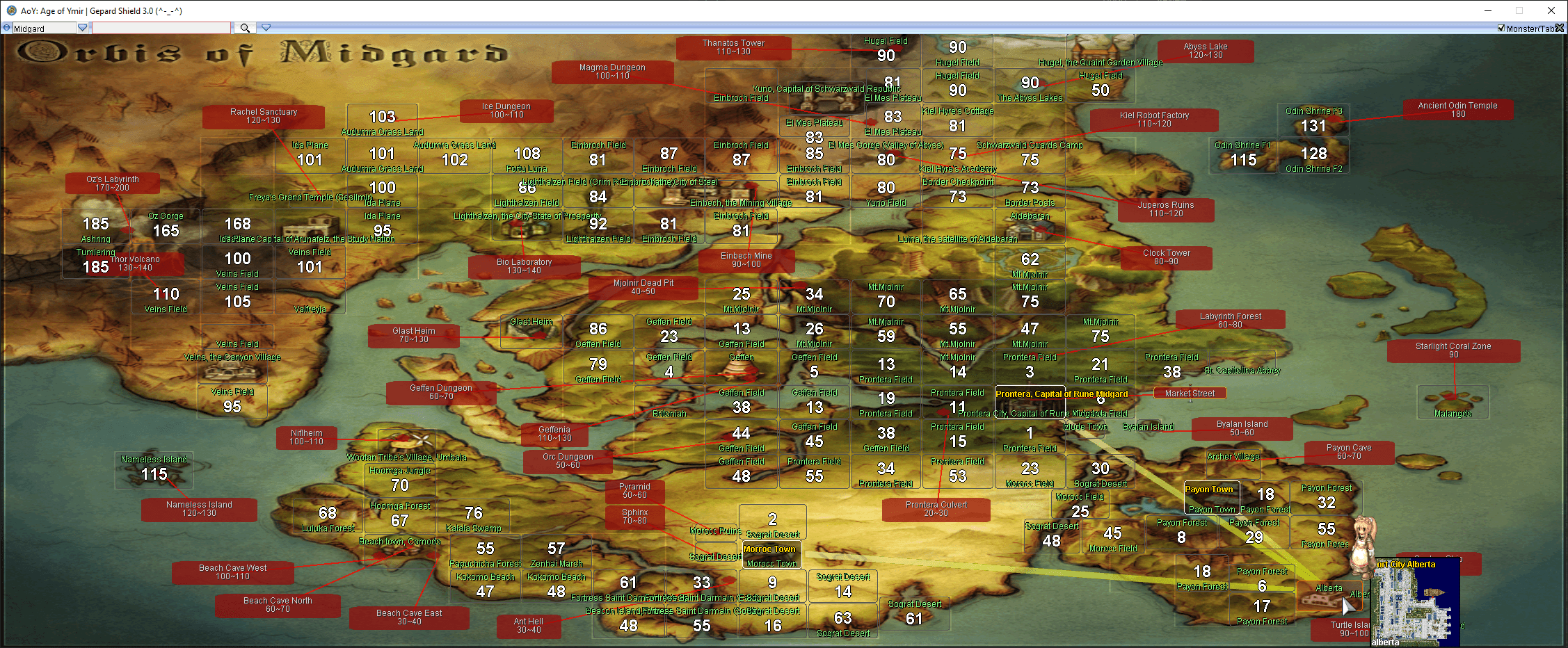
Enable the Monster tab in the top-right of the world map to reveal field and dungeon level markers. This is useful when you want a broader hunting plan before selecting a specific Adventure Guide monster row.
- Field boxes: show map names and recommended monster levels.
- Dungeon labels: mark major leveling and farming areas across Midgard.
- Route lines: help you understand where the Navigation target sits relative to your character.

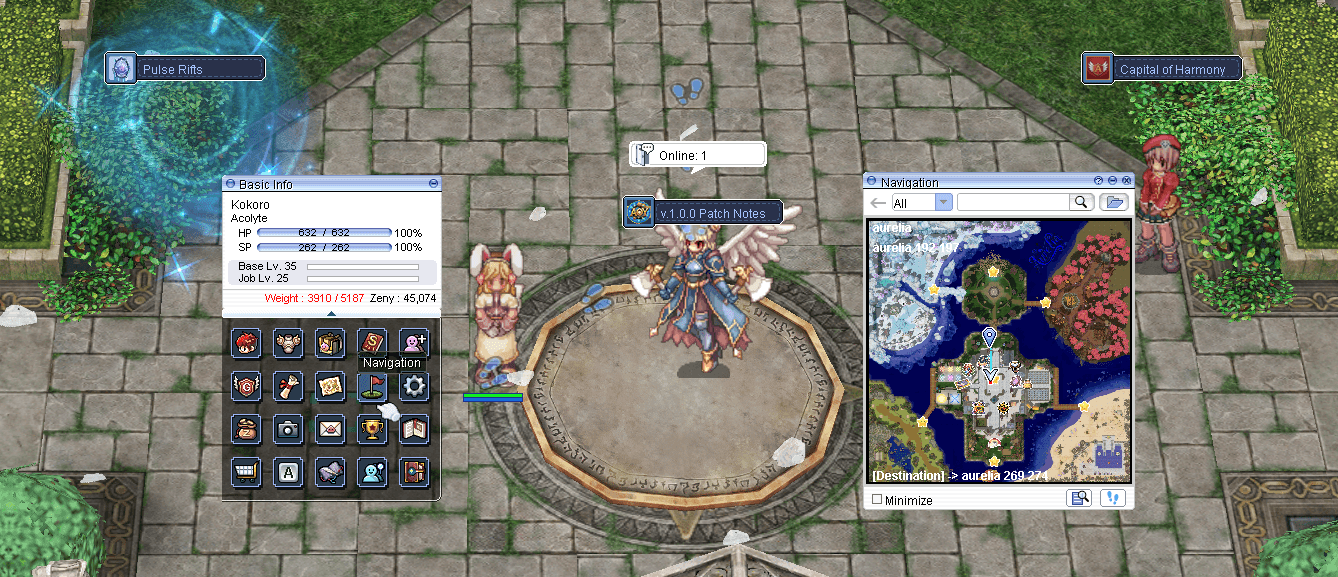
AoY keeps the familiar Ragnarok Navigation rhythm: search for a map, monster, or NPC; choose a result; then use Find for route guidance or Move for teleportation. From a player's point of view, Find means "show me where to go" and Move means "take me there." The Adventure Guide, Orbit of Midgard, and Navigation window all work together, so you can go from "what should I do next?" to "how do I get there?" without leaving the client.
 Permanent World Tour Ticket
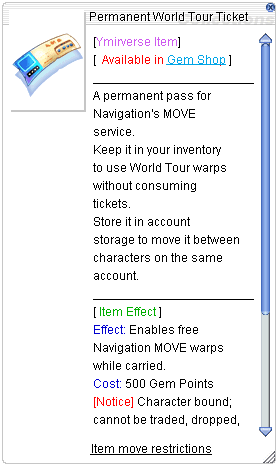

When you press Move, you are asking the game to warp or teleport you to the selected destination. If the payment prompt appears, use the Permanent World Tour Ticket item ID 45234 to freely warp to supported world-map destinations. This is especially helpful when the Adventure Guide recommends a monster, quest, or dungeon far from your current town.
- All filter: searches across available destination types.
- Result icons: separate maps, NPCs, and monsters in the search list.
- Share: sends a selected destination to chat for party coordination.
- Find: marks the path or destination.
- Move: starts the warp/teleport flow, including World Tour Ticket use when available.
 A Friendly First Flow
- After Mom's tutorial: open the Adventure Guide and read the Start tab so you know what each area is for.
- When leveling: check Monster first, then use Find for route guidance or Move to teleport to a fitting hunting map.
- When you want goals: check Quest and Dungeon to see what your current bracket can start.
- When gear feels behind: check Weapon and Armor by category, then follow the obtain guide or Tipbox link.
- When travel feels confusing: open Orbit of Midgard with CTRL + `, enable Monster tab when planning hunts, and use Navigation to teleport with your World Tour Ticket.